Want your skull to say something specific? Ocular Vox plays any custom audio you give it and syncs the jaw to the words in real time. The only picky part is the file format, and we've built a free converter right on this page that does it for you.
The Magic Format
| File type | WAV (uncompressed PCM) |
| Bit depth | 16-bit |
| Sample rate | 44,100 Hz (44.1 kHz) |
| Channels | Stereo |
| SD card | FAT32, up to 32 GB |
MP3s won't play, even if you rename them to .wav. Skip to Step 4 if you already have audio and just need it converted.
Write the script
Type your own lines, or let a free AI such as Gemini or ChatGPT write them for you. Try this prompt as a starting point:
You are a witty, sarcastic talking skeleton head that is crazy about all things Halloween. Give me 15 short, 20-second phrases to greet trick-or-treaters with. Format them for a text-to-speech generator: plain text only, with no action tags, brackets, or non-verbal sound effects.
Turn the text into a voice
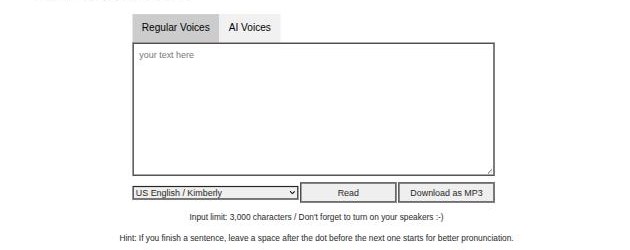
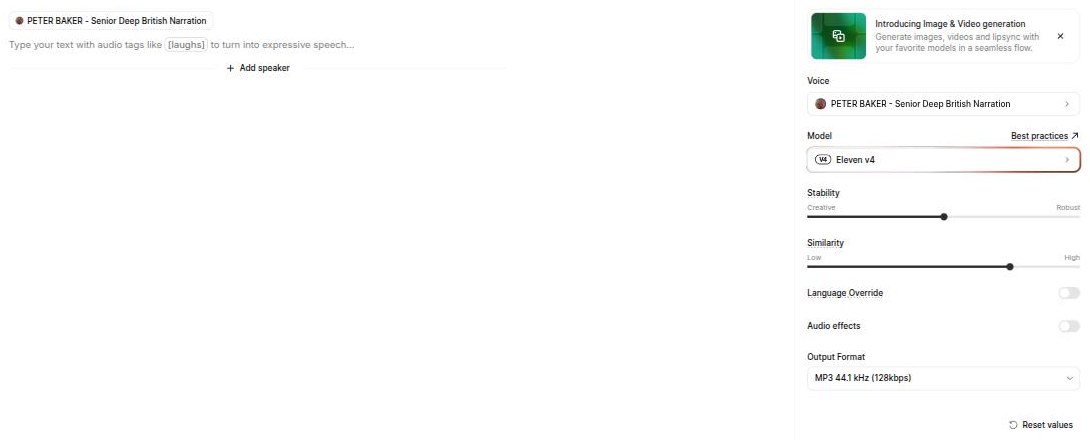
Paste one phrase at a time into a text-to-speech (TTS) site. Making one file per phrase lets the skull pick a different line each time it's triggered.
Download the audio
Most free TTS sites give you an MP3. That's expected. Ocular Vox reads uncompressed WAV so it can analyze the audio for jaw movement, which is why the next step matters.
Tip: name your files 01_greeting.mp3, 02_candy.mp3, and so on. Tracks play in alphabetical order, so numbers keep them in the order you want.
Convert to Ocular Vox WAV
Use our converter below. It turns MP3, M4A, OGG, FLAC and WAV files into exactly the right format.
💀 Ocular Vox Audio Converter
Prefer a different tool? Use CloudConvert
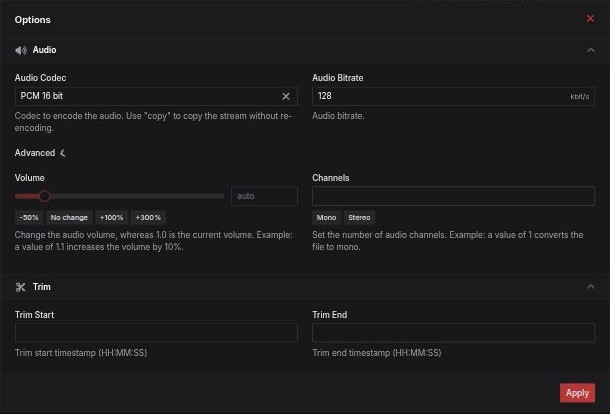
cloudconvert.com/mp3-to-wav converts several files at once. Add your files, then click Options next to WAV and set:
- Audio Codec: PCM 16 bit (the default)
- Click Advanced, then set Channels to Stereo
Copy to the SD card
Plug your MicroSD card into your computer and copy the WAV files into the right folder:
├─ /audio/ voice lines, played when triggered (up to 32 tracks)
│ ├─ 01_greeting.wav
│ └─ 02_candy.wav
├─ /ambient/ optional background loops
│ └─ spooky_wind.wav
└─ /eyes/ optional custom eyes
Eject the card safely, plug it into your Ocular Vox, and trigger it.
Add ambient sounds (optional)
Your skull can play creepy background audio while it waits, like wind, crickets, or a low drone. The process is identical: find a sound, run it through the converter in Step 4, and save it in the /ambient/ folder. It plays whenever the skull isn't talking.
Troubleshooting
- The skull stays silent
- The file is probably not a true 16-bit PCM WAV. A common cause is an MP3 that was simply renamed to .wav. Run it through the converter above. Also check that the file is in /audio/ and the card is FAT32.
- Some editors' WAV files won't play
- Audio editors sometimes save 24-bit, 32-bit float, or "extensible" WAV files. Ocular Vox only reads plain 16-bit PCM. Re-export with 16-bit PCM, or run the file through our converter.
- The audio sounds sped-up or slowed-down
- The sample rate is off. Convert again using the converter above, which locks it to 44.1 kHz.
- Voice lines play in the wrong order
- Tracks play alphabetically. Tick "Add order prefixes" in the converter, or name files 01_, 02_, 03_ yourself.
- Still stuck?
- Check the FAQ or ask in the Ocular Vox support group.